R2build
system is a tool/framework to establish your daily build(or nightly build, or
build automation, or continuous integration system) in a very easy way . It
includes, but is not limited to, plug-ins for email notification, FTP, various installer
packaging tool, Java/C++/Ant/Nant/.Net/Delphi/C++Builder, and various source
control tools.
R2Build is licensed under the
terms of the GNU General Public License.
It adheres to open source model and therefore makes the source code
freely available.
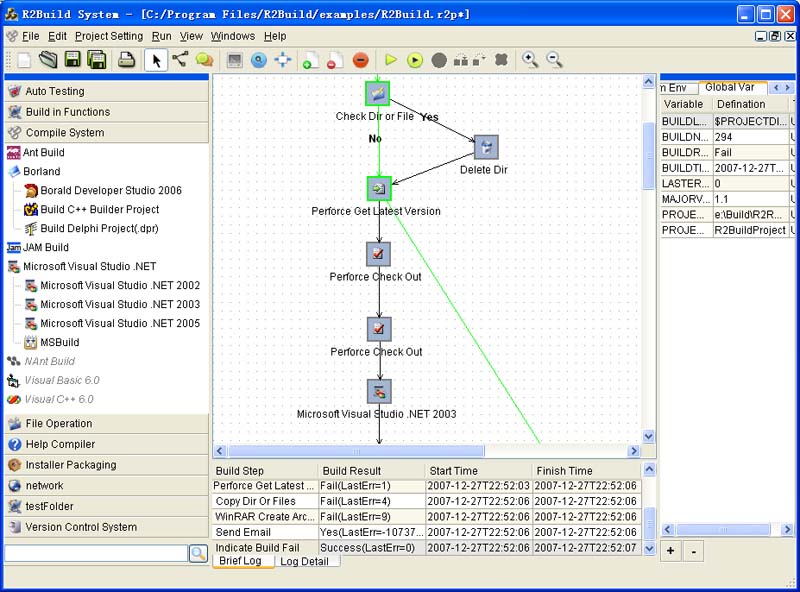
The
main application includes the following sub windows:
Tool Box Window:
contains most of the development and test tools, including but not
limited to:
l Source control tools:
CVS/Perforce/ClearCase/VSS/subversion/Surround SCM
l Compiler: Ant/Nant/.Net/Delphi/C++Builder/VC/VB
l Installer packaging:
WISE/InstallShield/NullSoft/Inno
l Help Compiler
l File operation
l Network: FTP/Mail
l Auto testing tools:
WinRunner/QAWizard/Robot/NUnit/ TestComplete
It’s populated by plug-in configuration
xml file (.xml). You can also create your own plugin xml file to enable a new
tool. By draging an icon from the tool box, you can create a new node in the
flowgraph view.
Build Setting flowgraph view:
a canvas to hold the build setting nodes and
links. A Build-Setting node is one build step, you can add node by dragging
from Tool-Box window onto this canvas, you can double click to change the node
parameters. Also you can link two nodes to indicate the transition after
performing one node. Using Nodes and Links, you can draw an automation Flowgraph
(Build Settings). You can set one start node for this graph.
Log Window:
when you run the automation flow graph, the
log will be displayed here.
Variable Window:
you can define variables which
can be used in node setting parameters, all the variables are displayed in the variable
windows. You can add/delete using “+” or “-” button.
Application Tool Bar:
it include almost all the
function, File operation (save/open), Flow graph drawing tool (Connect Node
button, Add Comment Text button), and debug/run tools.
The
most important configuration is setting up all the software tools you need in
R2Build. Select menu: Project Settings->Setup application Paths (or Setup
Application Paths button in the application tool bar).
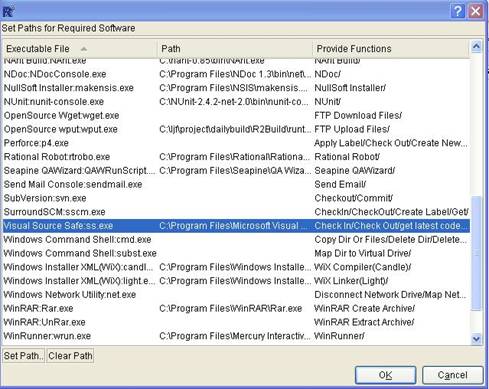
After
you install R2Build, it ships with a default setting for all the required software
tools, but these setting are the default installation locations of these tools.
You should check and set your installed location in R2Build. For example, for
visual source safe, the default installation location is c:\program
files\Microsoft visual studio\common\vss\win32\ss.exe, but if you installed it to
D:\VSS\... on your build server, you should select visual source safe:ss.exe
item in the dialog, double click or click “set path..” button to choose your
dir of ss.exe.
NOTE:
R2Build’s searching rule for tools: when you add the node, R2Build first searches
the tool in the dir you configured, if fail, uses the system PATH env to search
again, if still can not find, it will popup a dialog to let you input the
correct path.
1. Click
the “Create new file” button in the “Application tool bar” to create a new
build flow graph.
2. Setup
required global variable.
In the Variable window, double click “BUILDLOGFILENAME”
to setup your log file (log file will store all the output generated by plug-in
tools when running the build).
you also need setup the following global vars:
PROJECTNAME: You build project name, will show in the build history in 1.1 version
BUILDNUMBER: the integer number to indicate the global build number, Important: you should use edit variable node to increase BUILDNUMBER ( $BUILDNUMBER+1)
You
can add global variables for this build. For example, in the variable edit
dialog, you can add a “PROJECTDIR” global variable to indicate the project’s
root dir. Next time when use this parameter, you should add a “$” before
variable, such as the correct format is “$PROJECTDIR”, to use the variable “PROJECTDIR”.
3. Add Build
Node:
Drag and drop an icon from the Tool box window into the build flow
graph view, then double click this node to set up the parameters of this node. Usually,
the first step is getting the latest code from source control software. For example:
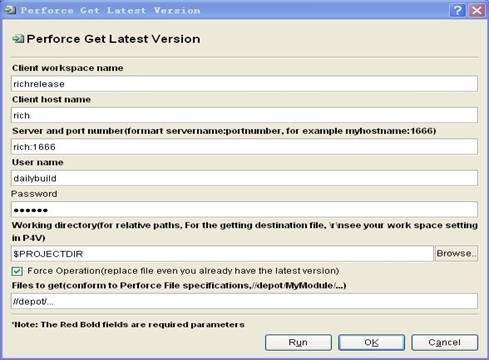
4. Add Link:
After adding some nodes in the build flow
graph view, you can add the transition link between nodes. Firstly click “add
connection” button, secondly select first node, thirdly draw a line to the
second node, and then release the mouse (just like you draw a line in the
MSPaint), the arrow means the direction of transition. You can also setup the
transition condition: double-clicking the line and input the conditions in the
popup “Edit Condition” dialog. For example:

There is a line from “Perforce Get Latest Version Code” node to “Delete Files” node. Once you set the transition condition to “return value equal to Success”, then after the task of getting latest code finishes successfully, the action of “Delete file” occurs.
5. Setup start node:
Start node is the entrance of the build flow
graph. Each graph has one start node. Select a node, then Click “Set Start Node”
button.
6. Save build flow graph:
click “save” button, to save your build
flow graph and project.
Variables Overview
Variables in R2build are the key to make your builds dynamic. Variables can be used in almost every text property of every Node config dialog, for example in fields that specify file paths, directories etc.
variable type and scope
There are two types of variables available: Environment variable, User variable. Environment variable will be included in the application running environment, while user variable is used to make you parameter more dynamic(used in node parameter). Variables have visiblity scope, there are 3 visibility scope: System Env, Global Var, Current Node Var. For system env, it's system's env var, you can only set it by windows control panel, in r2build , we only display all the existing system env vars, no way to edit system env vars in r2build. For Global var, it's visible to all nodes in current project. For currnet node var, only visible to current node.
Adding Variables
click "+" button in the variable window, the following dialog is displayed:
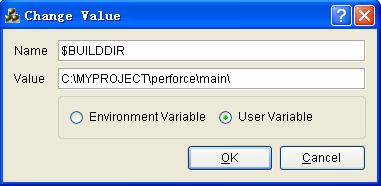
Variable Name:
The name by which you will refer to the variable in your build process. In a nod you reference the variable as follows, eg. $BUILDDIR.
Make Available as Environment Variable
Variables can be made available as environment variables to applications that are executed by R2build.
Persistent
The variable value will be saved between R2build executions. also will be saved when you save the build project.
(Tips: use "-" to remove a variable in the variable window)
Use Variables
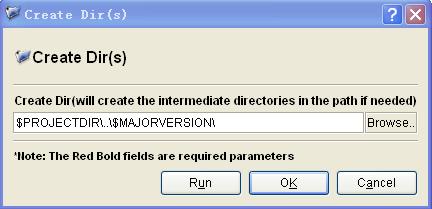
see the previous screen shot, both environment variable and user variable can be used in node config parameter, with a $ sign before the var name. For environment variable, it will be used as node running env.
Run without debug: Click “Run” button in the
application toolbar, the current build project will run, all the log will be
displayed in the log window (at the same time save to $ BUILDLOGFILENAME ).
Run with debug: Click “Run Debug” button in the
application toolbar, the current build project will run in debug mode, it will
break on the breakpoint.
Run from current node: right on the node, a menu will popup, choose "run from current node" , the build will be executed starting from this node
Set/remove breakpoints: To set a breakpoint, first select
one node and then click the “Add breakpoint” button in the application toolbar.
To remove a breakpoint, first select the node with breakpoint and then click “Remove
breakpoint”. You also can remove all the break points from the current build
project by clicking “Remove all breakpoints” in the application toolbar.
You can use either the two following ways to schedule your build, the first way(Dashboard) is strongly recommended.
1.
Using Dashboard(strongly recommended)
add new project, and change the schdule parameter for current project (see R2build dashboard for more detail)
2. Create Scheduled
Tasks in windows(without dashboard)
Command line
options: R2build
supports command line options, the format is:
R2Build.exe [-r][-q] [buildfilename]
-r means run the build project file
-q means quit R2build after the build finished
buildfilename is the full path name of the .r2p file(build project file)
You can setup nightly build task by these
command line options.
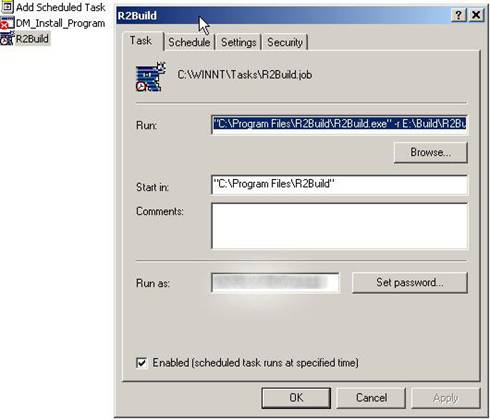
In Control panel->Scheduled tasks->Add
scheduled task, in the wizard, select the R2Build.exe, and input the parameter
required. After the wizard closed, double click the new created tasks called “R2build”,
modify the “run” parameter to "C:\Program
Files\R2Build\R2Build.exe" -r E:\Build\R2Build.r2p
Modify the italic part according to your
settings.
IMPORTANT:
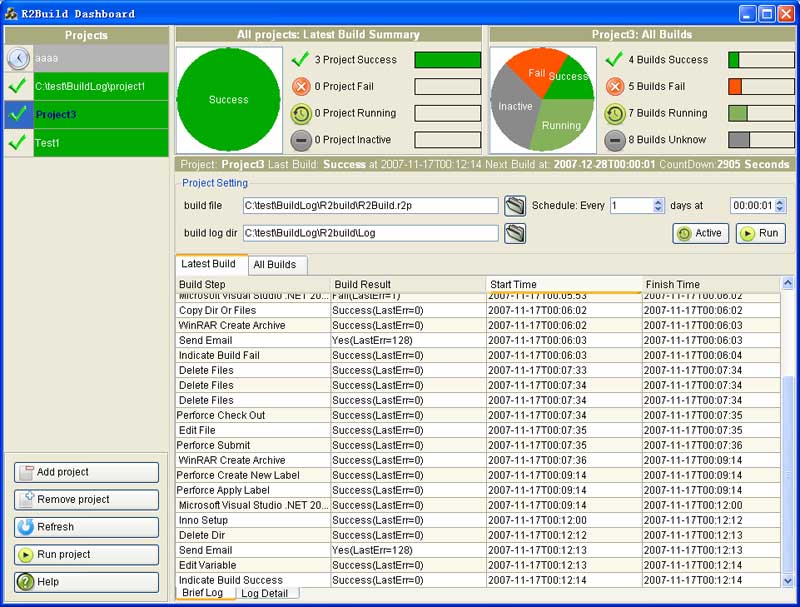
In you r2build project , you should add two special new nodes to indicate the total build result, that's "Indicate Build Fail" "Indicate Build success" in build in function group. add these two node to your 1.0 r2p file, when all the step fail, just link the last fail step with "indicate Build fail" and link the last success node to "Indicate build success" , Dashboard will collect these two node's result and show in the build summary. See R2build sample file in the example folder
Basic introduction:
the dashboard show the latest build of all projects chart in "All Projects: Latest build summary", this chart indicate how many project's latest build is successful or fail..
for one specific project, you can select it in the project list, all the builds summary chart of current project is shown in "Your Project Name: All Builds" , the log window show the log info of the latest build, select the all builds tab you can see the detail info of all builds. Also the project's configuration info is displayed on the top section.
How to use Dashboard
-add a new project, input the r2p file, the log dir(it's important, 1.1 use this dir the search the correct build info) also the schedule info
-keep dashboard run, it will start the build according to the schedule info. CLOSE Dashboard will not monitor the build and trigger the build. (Dashboard check every project's next build time every two seconds, if it's time to build , it will lanuch the build, so please don't close dashboard)
Advanced topic: Extend R2build, add more plugins
R2build uses xml file to describe the
Node UI dialog and the related parameter. To support a new tool/application in
R2build, you should check the command console parameter of this new
application, then create a new xml file in the
$R2buildInstallDir/plugins, When R2build start, it will scan all the plugin config xml file, and build
the corresponding nodes in the toolbox. This xml describes the console parameter, it’s also called application description xml.
A simple example
Let’s start from a very simple example.
You get a new application, simple.exe, by calling simple.exe –h , you know simple.exe have two parameter:
Simple.exe –f filename –x text
-f filename: file to open
-x text: text to delete from file.
To add simple.exe into R2build toolbox,
you need create a simple.xml into the
$R2BuildInstallDir/Plugins, you can create your own
folder, and put simple.xml into that folder. The
following is the xml file:
<?xml version='1.0' encoding='utf-8'?>
<Plugin version='1'
group="" name="Simple" appName="Simple"
description="">
<Type>command</Type>
- a command console application
<Executor>simple.exe</Executor>
- the application’s executable file name
<FixedParameter></FixedParameter> -Fixed parameter
<SubExecutor></SubExecutor> -the sub executor of this application
<Icon>simple.png</Icon> -the icon file of this application
<ParameterConfigUI>
- the main config section
<FileBrowser display="File to open" BrowseDir="FALSE"
Filter="" type="Parameter" relatedParameter="-f
"></FileBrowser>
-first parameter
<LineEdit display="Text to delete" type="Parameter" relatedParameter="-x"></LineEdit> -the second parameter
</ParameterConfigUI>
<ReturnValues> -enum return values of this application
<ReturnValue name="Yes" Condition="$RETURN!=0"></ReturnValue>
<ReturnValue name="No" Condition="$RETURN==0"></ReturnValue>
</ReturnValues>
</Plugin>
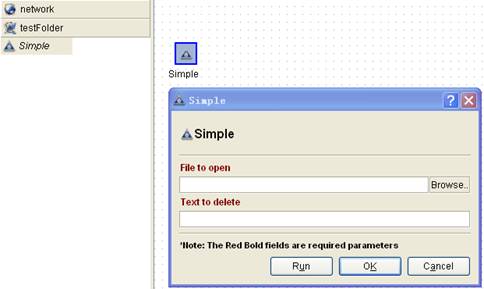
Will show in R2build as the following
screenshot:
Structure
of the xml file
<Plugin>
<Type>command</Type>
//Type is the plugin type, values are : command/plugin
<Executor>cleartool.exe</Executor>
//provide the executor file name, for comamand plugin, it's command's executable file, for plugin,it's plugin's .dll file name in the same dir of this file
<FixedParameter></FixedParameter>
//provide the requeired and non-configrable parameters
<SubExecutor>update</SubExecutor>
//The sub-command of this plugin, some of the tool
support sub-command, for example cleartool.exe has a sub-command update
<Icon>Update Snapshot View.png</Icon>
//The icon of this plugin
<ParameterConfigUI>
//The section for describing the plugin parameter
dialog and the related plugin parameterA list of Config items…
<ComboBox display="this is a combox sample"
relatedParameter="-d">availableValue="selectionA;selectionB;selectionC" value="selectionA"></ ComboBox >
<LineEdit display="UserName and password(seperate by
',')" type="Parameter" relatedParameter="-Y"></LineEdit>
<FileBrowser display="Sourcesafe Database " BrowseDir="TRUE"
Filter="srcsafe.ini" type="Env" relatedParameter="SSDIR"></FileBrowser>
……
……
……
</ParameterConfigUI>
<ReturnValues> //the possible return values for this plugin
<ReturnValue name="Success" Condition="$RETURN==0"></ReturnValue>
<ReturnValue name="Fail" Condition="$RETURN!=0"></ReturnValue>
</ReturnValues>
</Plugin>
Supported ParameterConfigUI Items
The following table
list all the supported ParameterConfigUI Items. The xml attributes of any item is composed by “Common Attribute” +
“Specific Atrribute”.
Config UI item |
Description |
Specific attribute
for this UI Item(see “common attribute” for attribute that’s applicable for
all items) |
ComboBox |
show many items
in ComboBox, and let user select one availableValue: list all the available values in the listbox, seperated by ; |
availableValue |
list all the
available displayed values in the listbox, seperated by ; between values |
InternalValue |
The internal
value is the real value that will apply in the command, seperated by ; between values |
ListBox |
show multiple items,
and let user select more |
availableValue |
list all the
available values in the listbox, seperated by ; between values |
selectionMode |
:single,multi,extended |
InputBox: |
show input box,
and let user input the parameter directly |
|
|
RadioGroupBox |
show radio
groups |
checkable |
If checkable is
TRUE, put a check box in the group box to enable /disable the whole group |
layout |
The layout for
the child of this RadioGroupBox. If it’s 1, means
we have one column, 2 means 2 columns |
value |
The default
value for checkable |
RadioBox |
show selection
item in radio button groups, and let user select one of them |
|
|
LineEdit |
show multiple
line editor, let user input multiple lines as parameter |
isPasswordBox |
If this lineedit is a password edit, the value is TRUE or FALSE,
if it’s a password box, will show mask while inputing |
CheckBox |
show check box,
and let user check/uncheck some parameter |
|
|
FileBrowser |
show the open
file/dir dialog to let user select a file or dir, have the following attrs |
BroserDir |
if this file
browser is a Dir Broswer(TRUE) or File
browser(FALSE), all upper case |
Filter |
the filter for
this filebrowser, correct format "Images (*.png *.xpm *.jpg);;Text files (*.txt);;XML
files (*.xml)"” |
VarViewBox |
show all the
defined variables |
|
|
TabView |
Show the tab
view |
CurrentPage |
the current page
of the tab |
TabViewItem |
Show one tab |
|
|
ParameterConfigUI Item common
attributes
Each Config UI
Item has the following common attributes
display: This label(display) for this item
type: see” Supported
ParameterConfigUI Item Type”
relatedParameter: the related parameter for this config item
ParaSeperator: parameter seperator for this config item, will add seperator between the relatedParameter and the value, if not config there is no seperator between para flag and values . for example -i"c:\aaa.txt" the paraSepeter is comma , -i c:\aaa.txt , the paraSepetra is one
space
Required:
if this field is a required parameter, values are : TRUE or FALSE (all upper case) , TRUE means this parameter is required. Default
value is TRUE if not setting.
Supported ParameterConfigUI Item Type
For each Config UI Item, they should belongs to the following types
Group:
this config ui item is the
used to hold other config ui items
ExecutorParameter: the parameter for the main executor,this config ui item is used to get the values for command parameter,
the releatedParamter field show it's releated parameter
Parameter:
the parameter for the sub executor,this config ui item is used to
get the values for command parameter, the releatedParamter field show it's releated parameter
Env: this config ui item is used to set the values for enviorenment variable, the relatedParameter field is the env variable name. NOTE: Env variable will be passed to the command as working envirment variables.
Property:
this config ui item is used
to get the other property of the command, the releatedParameter field is the property name. The supported
property is
WorkingFolder( the folder where
this command is working)
More examples
See $R2buildInstallDir/Plugins for more
examples.